Lumi
Phrase-aware lighting automation for DJ sets.
Lumi Remote for iPhone
Lumi Remote is the focused Live Decks companion for the booth. The Mac remains the show authority; the iPhone displays its current state and sends a small, revision-safe set of user commands.
Requirements
- Lumi Remote 0.1.1 on an iPhone running iOS 18 or newer;
- Lumi 0.6.2 or newer on an Apple Silicon Mac;
- both devices on the same local network;
- matching Production, RC or Dev release channels.
The phone needs Local Network permission. Internet access is not required while using the Remote. The current beta is installed from source with Xcode. A Simulator archive from GitHub Releases cannot be installed on a physical iPhone, and no TestFlight invitation is currently available.
Install the current beta with Xcode
This is the free installation route while Lumi Remote is in its early public beta. It requires a Mac and an Apple Account, but it does not require a paid Apple Developer Program membership.
- Install the current Xcode release from the Mac App Store.
-
Clone Lumi and switch to the immutable Remote beta tag:
git clone https://github.com/victorblanco-tech/lumi.git cd lumi git switch --detach lumi-remote-v0.1.1 open apps/ios/LumiRemote.xcodeproj - Choose Product → Scheme → Edit Scheme, select Run and set its build configuration to Release. This connects to the Production Lumi Gateway.
- In Xcode, open Xcode → Settings → Accounts and add your Apple Account.
- Select the LumiRemote project and target, then open Signing & Capabilities.
- Enable Automatically manage signing, select your Personal Team and
replace the Release bundle identifier with a unique value such as
local.yourname.lumi.remoteif Xcode reports that the existing one is unavailable. - Connect and unlock the iPhone, trust the Mac when asked and enable Settings → Privacy & Security → Developer Mode on the iPhone if needed.
- Select that iPhone as the Xcode run destination and press Run.
- Start Lumi 0.6.2 on the Mac, enable its Remote Gateway and follow the pairing steps below.
Apple Personal Team provisioning expires after seven days. Reconnect the iPhone and press Run in Xcode again to renew the installation. Apple also limits free on-device testing to three devices per platform. Do not download or install an IPA offered by an unofficial third party.
Production, RC and Dev Remotes cannot cross-connect. The Release configuration above deliberately pairs with the Production Mac app. TestFlight will become the preferred public installation path if the project gains enough field usage to justify the paid Apple Developer Program membership.
Pair the iPhone
- On the Mac, open Integrations → iPhone Remote and enable the Remote Gateway.
- Choose Pair New iPhone. Lumi shows a one-use QR code and confirmation code that expire after five minutes.
- Open the iPhone Camera, scan the QR code and continue in Lumi Remote.
- Confirm that the six-digit code is identical on the Mac and iPhone.
- Approve the device on the Mac and grant Controller access when this phone should be allowed to change the show.
The iPhone stores its credential in Keychain. The Mac stores only a verifier. Pairing can be revoked or Controller access transferred from the same Integration page.
Live controls
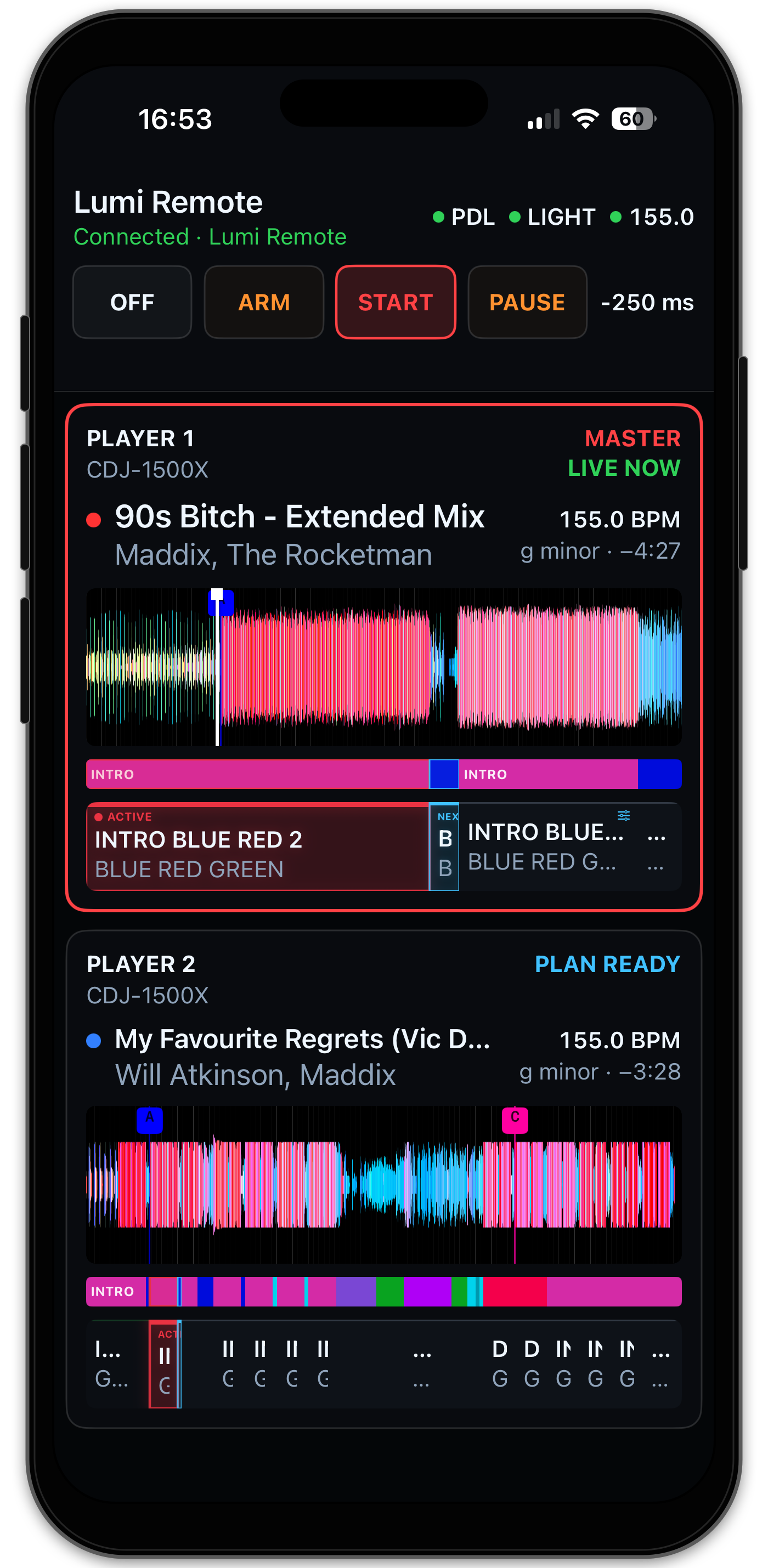
The top bar stays visible during connection, reconnect and playback. It shows Pro DJ Link, Light Output and Ableton Link health plus the current master BPM. The main controls mirror macOS:
- Off stops automatic lighting output;
- Arm follows Players and prepares plans without sending lighting actions;
- Start allows the Mac engine to send the prepared lighting actions;
- Pause suspends new automatic actions while retaining show state;
- Link enables or disables the isolated Ableton Link relay;
- Timing offset changes the shared, saved lighting compensation for a future phrase boundary without disturbing the AutoLoop that is already running.
Tap the timing value to adjust it from −250 to +250 ms, with a slider and 1 ms fine adjustment. Negative values trigger earlier; positive values trigger later. Apply sends your choice; Cancel leaves it unchanged. During playback, NEXT PHRASE appears beside the requested value until the engine applies it at a phrase boundary. Incoming player updates do not reset an open timing editor. With Lumi 0.6.2 / Remote 0.1.1, changes from either the iPhone or Mac are saved by the Mac engine and remain after restarting Lumi. NEXT PHRASE describes activation timing, not temporary storage. Mac, RC and Dev installations keep their own settings. If saving fails, Mac Live shows NOT SAVED with the reason in the timing control; choose the value again to retry.
Only one paired iPhone can be Controller at a time. Viewers see the same Live state but cannot mutate it. Commands are never queued while disconnected.
With Lumi 0.6.2 / Remote 0.1.1 or newer, the connected status explicitly says Controller or View only. Both are healthy connections. Tap the Lumi Remote heading for the controlling device and this app’s version. An older Remote that does not report its version is shown as such on the Mac.
The Controller keeps its role while offline. Opening another Remote, restarting the Gateway or changing show mode does not transfer control. To hand over, choose Make Controller for the desired device in Integrations → iPhone Remote on the Mac. Revoke removes the pairing; it does not assign another Controller automatically. The first paired device receives control initially. The Mac’s Control history records initial assignment, explicit transfers and Controller revocation. Entries begin with this update, not retrospectively.
Player view
Portrait places the Master first and the prepared next Player below it. Landscape keeps numbered Players side by side. Each loaded card contains:
- the real
Player nidentity and detected hardware model; - title, artist, track color, effective BPM, key and remaining time;
- the same cached RGB waveform, beatgrid and Hot Cue markers used by Lumi;
- proportional Lumi phrases and the compiled Light Plan;
- clear red Active and blue Next plan emphasis.
Pinch changes the visible beat span without moving the Master playhead. Tapping a future phrase opens Phrase Type, Theme, AutoLoop and lock controls. Phrase Type lists your configured Lumi types, not repeated phrases from this track. Active and completed phrases remain read-only.
Connection safety
The Remote Gateway is deliberately outside the three realtime integrations. Closing the iPhone app, losing Wi-Fi or revoking a device cannot stop Pro DJ Link ingestion, SoundSwitch MIDI output or Ableton Link on the Mac. On return, the app reconnects and requests a complete current snapshot before enabling controls.
If connection fails:
- confirm that both devices are on the same LAN and not isolated by a guest Wi-Fi policy;
- confirm that the matching Remote Gateway is enabled on the Mac;
- check iOS Settings → Privacy & Security → Local Network;
- keep the last show running on the Mac and reconnect the phone—do not re-pair unless Lumi reports that the credential was revoked.
Beta feedback
Include the Lumi and Lumi Remote versions, iPhone model, iOS version, Mac model, network type and smallest reproducible sequence in a field report. Never attach music, USB databases, SoundSwitch projects, pairing QR codes, tokens or private network details to a public issue.
See Privacy and the Public Beta guide.